
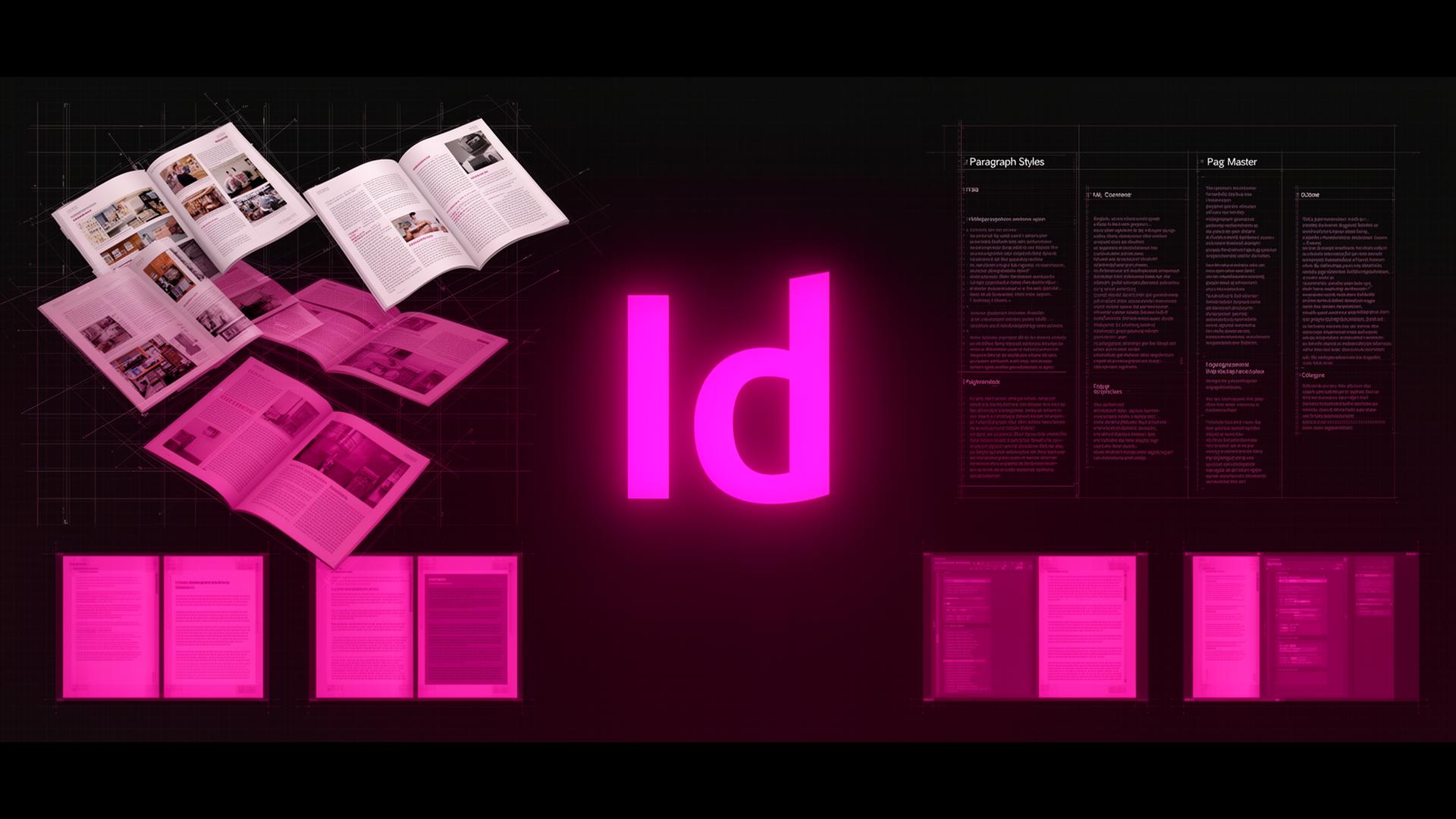
Master pages explained
A master page (called Parent Page since 2020) is a template applied to multiple document pages. Anything you place on a master — folios, running heads, baseline grids — appears on every page based on it. Edit the master, and every child page updates instantly.
Creating a master
Open Pages panel. Double-click A-Parent to edit it. Add a footer frame with the page number marker, a hairline rule above and your publication name on the verso. Return to a document page — the elements are locked in place but visible.
Applying and overriding
Drag a master onto a page thumbnail to apply it. To edit a master item on one specific page, Cmd/Ctrl+Shift-click it to override. Override sparingly — too many overrides defeat the purpose.
Multiple masters for chapters
Right-click in the Pages panel → New Master. Make B-Chapter Opener with a large title frame and no folio, then apply it to the first page of every chapter. The book gets visual variety without breaking consistency.
Paragraph styles — your typographic spine
Window → Styles → Paragraph Styles. Define Body Text first: font, size, leading, indent, space-after. Then base every other style (Subhead, Caption, Quote) on Body so a single point-size change cascades through the whole document.
Character styles for inline overrides
Where paragraph styles affect entire paragraphs, character styles handle italics, small caps, drop caps and run-in headers. Define a Run-in style for bold lead-ins and apply it via Find/Change for instant consistency.
Next Style for fast typing
In a paragraph style, set Next Style. Typing a Heading then Enter automatically switches to Body — no menu hunting, perfect for raw manuscript flow.
Style import across documents
Paragraph Styles panel menu → Load Paragraph Styles. Pull styles from another InDesign file to unify a multi-volume series. Combined with master pages, this is how publishing houses ship 200-page books in days.